Blender to Roblox: Export Settings and Import Steps
Move models from Blender into Roblox Studio: official FBX export settings, 3D Importer steps, triangle and texture limits, and Roblox's Blender plugin.
Image: The Mystery of Duvall Drive by Alpha Strike Group (Roblox)
On this page10
To move a model from Blender to Roblox, export it from Blender with File › Export › FBX (.fbx) using Roblox’s settings (Path Mode Copy, Embed Textures on, Apply Scalings set to FBX Unit Scale, Add Leaf Bones off). Then in Roblox Studio open File › Import, pick the file, check the Import Preview and press Import. Keep every mesh under 20,000 triangles.
Quick facts
- Export
- File › Export › FBX (.fbx)
- Import
- Studio: File › Import
- Formats
- .fbx, .obj, .gltf, .glb
- Mesh limit
- 20,000 triangles each
- Max texture
- 1024x1024
Before you export: get the model ready
Most import problems start in Blender. Run through these first:
- Check the triangle count. Turn on Blender’s statistics overlay and look at triangles, not faces. Any single mesh over 20,000 triangles will not import as one MeshPart. Use a Decimate modifier or split the model into parts. Lower counts also load faster on phones, where many players are.
- Apply transforms. Apply rotation and scale on your objects so Roblox gets the shape you see.
- Name things. Object names become MeshPart names in the Explorer. “Wheel_FL” is easier to script than “Cylinder.004”.
- Plan your textures. Roblox’s maximum texture resolution is 1024x1024, and its guideline is about 256x256 per 2x2x2 stud space, or 1024x1024 for a 20x20 stud object. Bigger textures do not help.
Blender
3D modelsFree tool for cleaning up, reducing and exporting models before they go into Studio.
- Free tier
- Exports FBX, OBJ, GLB
Step 1: export FBX with Roblox’s settings
These come from Roblox’s export requirements page:
- In Blender, choose File › Export › FBX (.fbx).
- Set Path Mode to Copy and turn on Embed Textures (the small toggle next to it). This packs your image files into the FBX.
- Under Transform, set Apply Scalings to FBX Unit Scale.
- Under Armature, turn off Add Leaf Bones. Leaf bones are extra end bones Roblox does not need.
- Export.
If you have selected only part of your scene, turn on the export option for selected objects so you do not ship your lights and camera too.
Step 2: import into Roblox Studio
- Open your place in Studio.
- Go to File › Import (the Home tab also has Import).
- Pick your
.fbx. - Look over the Import Preview window: presets, the object hierarchy and an inspector for each object. Under File General you will find Upload To Roblox.
- Press Import.
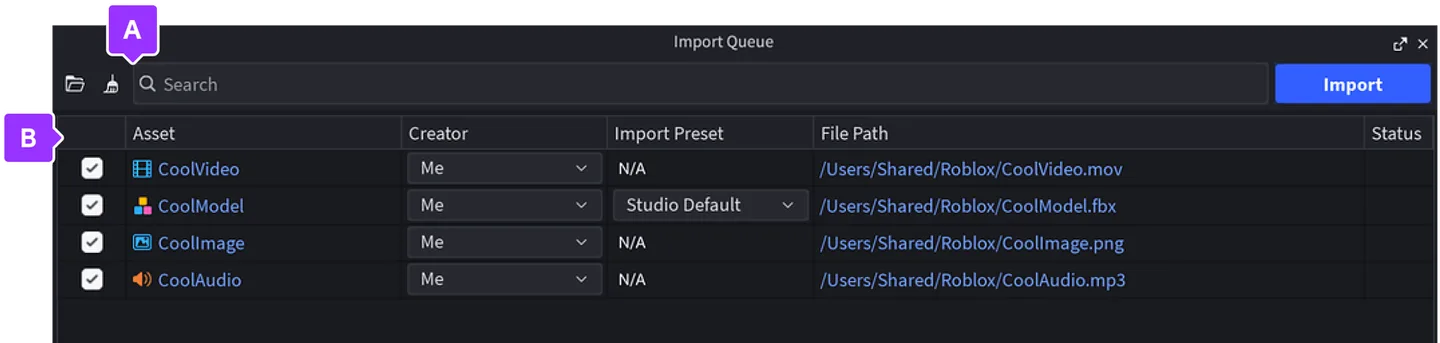
Your model arrives as MeshParts. A MeshPart is a part with a custom mesh that the physics engine simulates like any other part, so you can anchor it, weld it and script it.
After import: quick checks
Before you build on the model, playtest once. Walk around it and look for missing faces (usually flipped normals in Blender), wrong scale next to a default character, and textures that came in gray. Check the Explorer too: each mesh should be its own MeshPart with the name you gave it. If something is off, fix it in Blender and import again rather than patching it in Studio, so your source file stays the real version. Anchor static props so they do not fall or get pushed around, and group related parts into a Model so you can move them as one.
FBX, OBJ or glTF?
Studio’s importer reads .fbx, .obj and .gltf, and .glb also imports (with a different hierarchy than FBX). FBX and glTF both support multiple meshes, hierarchies, basic and PBR textures, cage meshes and rigs. OBJ is fine for a single static prop. We use FBX in this guide because Roblox documents exact Blender export settings for it.
Textures and PBR
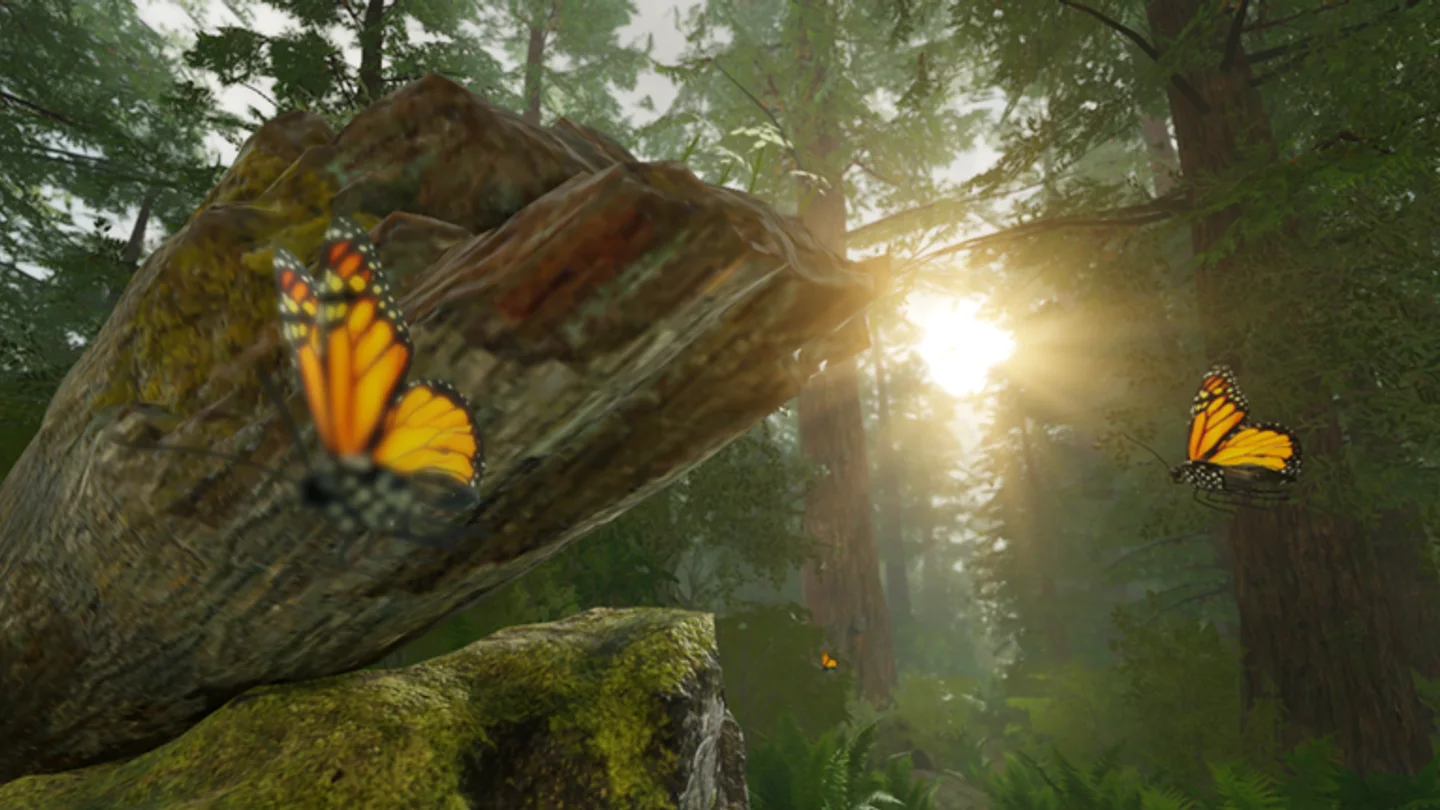
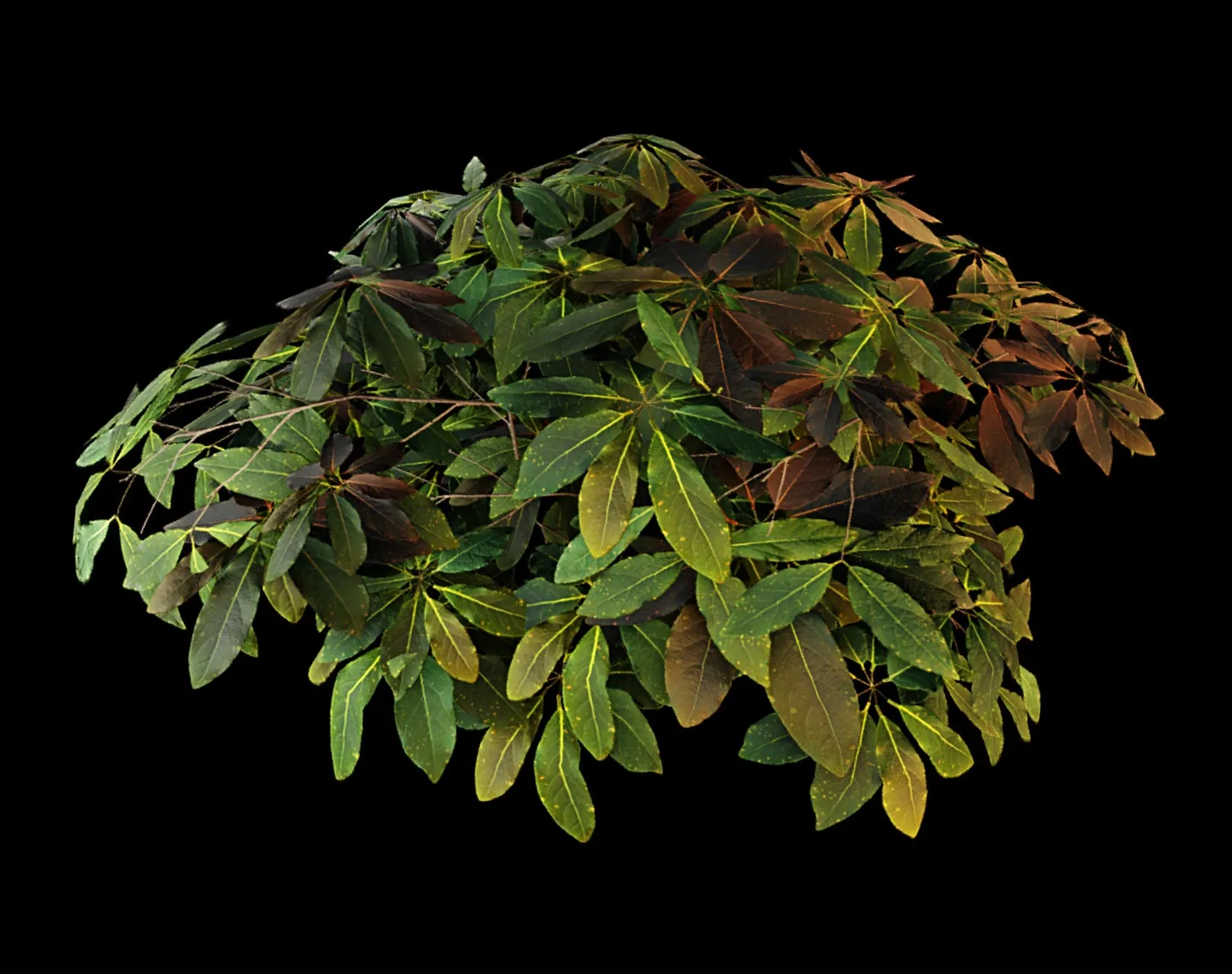
For realistic materials, Roblox uses a SurfaceAppearance object with four maps: ColorMap (albedo, including transparency), NormalMap, MetalnessMap and RoughnessMap. If you bake these in Blender, export them at no more than 1024x1024.
The official Roblox Blender plugin
Roblox publishes an open-source Blender plugin, built on Open Cloud, at github.com/Roblox/roblox-blender-plugin. It uploads from Blender to your Roblox account so you can skip a manual export for each change. Follow the README in that repo for install steps, since they can change between releases.
Rigged characters and animation
If your model has an armature, FBX and glTF carry the rig. The Add Leaf Bones setting matters most here. For characters, Studio’s Avatar Setup (Avatar tab) can auto-rig, skin and cage a model imported as .fbx, .obj or .gltf, which saves a lot of Blender time. Once it is rigged, see how to animate in Roblox Studio.
Using AI-generated models
AI 3D tools often produce meshes with far more triangles than Roblox allows, plus messy topology. Blender is the cleanup stop: import the AI model, decimate under 20,000 triangles per mesh, fix scale, then export with the settings above. Our Meshy AI to Roblox guide walks through one tool, and the Toolbox and assets guide covers managing everything once it is in Studio.
Blender to Roblox FAQ
What export settings should I use in Blender for Roblox?
Use File › Export › FBX (.fbx), set Path Mode to Copy and turn on Embed Textures, set Transform › Apply Scalings to FBX Unit Scale, and under Armature turn off Add Leaf Bones.
Is there an official Roblox Blender plugin?
Yes. Roblox publishes an open-source Blender plugin built on Open Cloud at github.com/Roblox/roblox-blender-plugin.
How many triangles can a Roblox mesh have?
An individual mesh cannot exceed 20,000 triangles. Split larger models into several meshes or reduce them in Blender first.
Should I export FBX, OBJ or glTF from Blender?
All three import. FBX and glTF support multiple meshes, hierarchies, PBR textures, cages and rigs, so pick FBX (which Roblox documents export settings for) for anything rigged or textured.
Why are my Blender textures missing in Roblox?
Usually the textures were not embedded. Export again with Path Mode set to Copy and Embed Textures turned on.
Keep building
Every guide, newest first Roblox Assets and the Toolbox: Find Free Models SafelyUse the Roblox Studio Toolbox and Creator Store for free assets, manage your own with Asset Manager, import 3D files and audio, and spot unsafe models.Assets and Models4 min read
 The Best AI 3D Model Generators for Roblox StudioWhich AI 3D model generators work for Roblox: Roblox's own mesh generation, Meshy, Rodin, Scenario and Tripo, compared on export formats, free tiers and price.Assets and Models3 min read
 Meshy AI to Roblox: Generate a 3D Model and Import It Into StudioMake a model in Meshy, export FBX or GLB, keep it under 20,000 triangles, and bring it into Roblox Studio with the 3D Importer. Settings, textures and fixes.Assets and Models4 min read
 How to Make a Map in Roblox Studio (Terrain, Heightmaps and AI)Make a map in Roblox Studio with the Terrain Editor: Generate, heightmap Import, sculpt and paint tools, plus how Assistant and the Studio MCP help fill it in.Building and Maps4 min read
 Roblox Lighting: Every Setting Explained, With Presets That WorkRoblox lighting explained: LightingStyle, ClockTime, Ambient, shadows, Atmosphere and post-processing, with day, sunset and horror setups to copy into Studio.Building and Maps4 min read
 Roblox Studio Update Notes: November 18 to 24, 2026Roblox Studio update notes for November 18 to 24, 2026, sorted by what you can ship now and what is still in beta, with menu paths, limits and API names.Building and Maps4 min read