Assets and Models
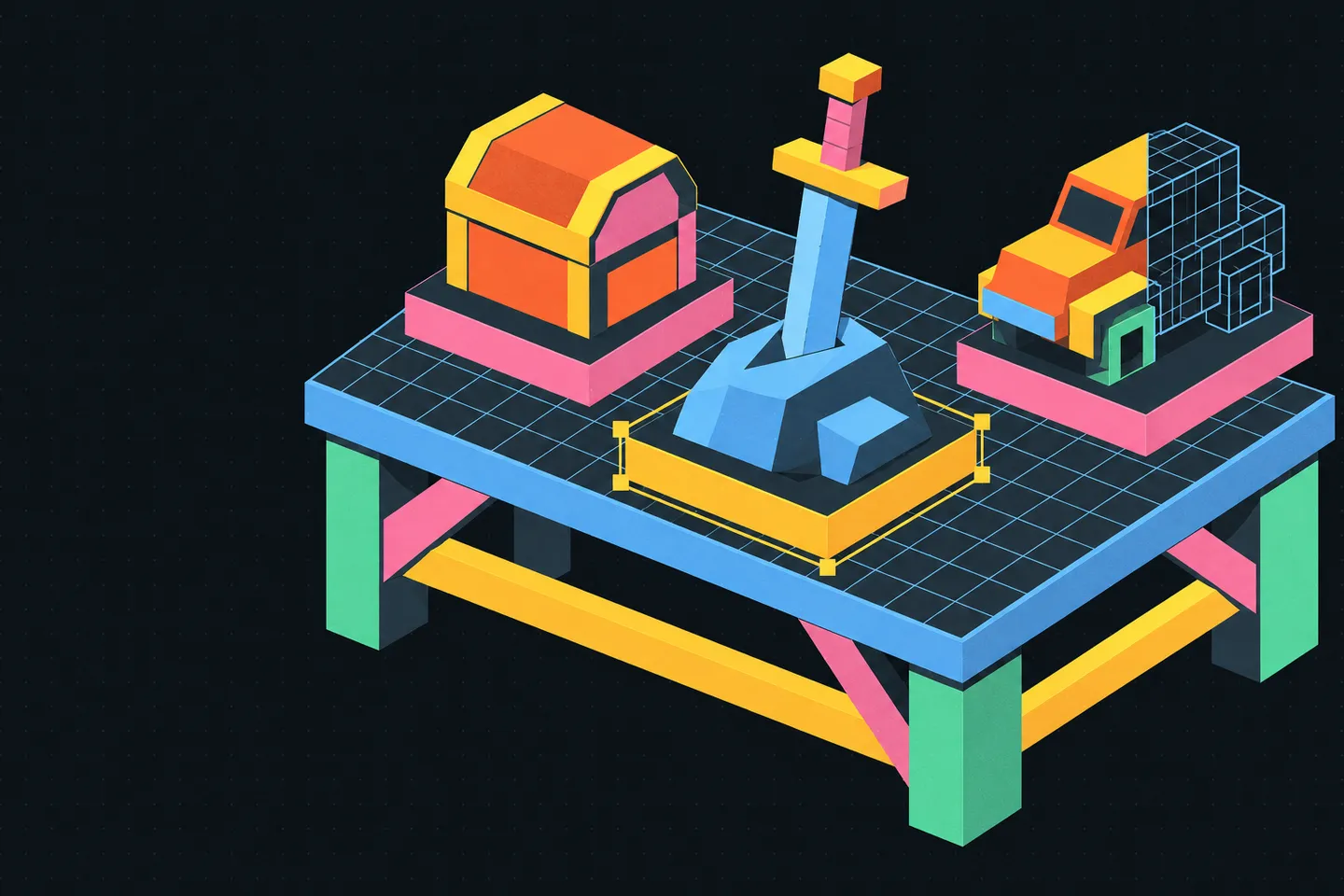
Every Roblox game needs models, and there are three ways to get them: make them yourself in Blender, generate them with an AI tool, or find them in the Toolbox. These guides cover all three, including the export settings Studio expects and the limits on mesh size.
AI model generators are good for props and rough shapes, but they often need cleanup before import. The comparison page shows what each generator is good at. If you use free models, the Toolbox guide explains how to spot scripts hidden inside them before they reach your game.
4 guides in Assets and Models
 Blender to Roblox: Export Settings and Import StepsMove models from Blender into Roblox Studio: official FBX export settings, 3D Importer steps, triangle and texture limits, and Roblox's Blender plugin.Assets and Models4 min read
 Meshy AI to Roblox: Generate a 3D Model and Import It Into StudioMake a model in Meshy, export FBX or GLB, keep it under 20,000 triangles, and bring it into Roblox Studio with the 3D Importer. Settings, textures and fixes.Assets and Models4 min read
 The Best AI 3D Model Generators for Roblox StudioWhich AI 3D model generators work for Roblox: Roblox's own mesh generation, Meshy, Rodin, Scenario and Tripo, compared on export formats, free tiers and price.Assets and Models3 min read
Choosing a way to get models into your game
Three routes, one set of limits
Whichever route you pick, Roblox applies the same rules at the door. The 3D Importer accepts .fbx, .obj and .gltf, with .glb also importing, each mesh must stay under 20,000 triangles, and textures top out at 1024 by 1024. Knowing those numbers before you model saves the most common failure on this topic, an import that errors because the mesh is too dense.
If you want the fastest result
Open best AI 3D model generators for Roblox first. It compares Roblox's own mesh generation in Assistant, Meshy, Rodin, Scenario and Tripo on export formats, free tiers and price, and it points out the license catches: Meshy's free plan uses CC BY 4.0, which requires credit, and Scenario's free credits are for personal or evaluation use only. The built-in option needs no import at all, which is why the comparison recommends it as the easiest start.
If you picked Meshy
Go straight to Meshy to Roblox Studio. It walks through generating, exporting FBX or GLB, importing, fixing textures, and setting collision and render fidelity. Its fix list begins with triangle count, since that is the usual reason an import fails. The free plan gives 100 credits a month, and a rigged humanoid can go through Studio's Avatar Setup tool.
If you model yourself
Blender to Roblox gives the export settings: File, Export, FBX, Path Mode set to Copy with Embed Textures on, Apply Scalings set to FBX Unit Scale, and Add Leaf Bones off under Armature. If your textures come in blank, the guide says to export again with textures embedded. It also covers Roblox's open source Blender plugin.
If you use free models
Roblox assets and the Toolbox is the safety read. Some free models hide scripts that load other assets at runtime, so search anything you insert for Scripts and for require( followed by a number before you publish. The same page lists audio limits, a single track under 20 MB and 7 minutes, and says the Asset Manager is for managing your own assets while the Toolbox is for browsing.
A sensible order
Read the Toolbox safety section even if you plan to make everything yourself, because you will end up inserting something. Then read the comparison, choose a generator or Blender, and follow the matching how-to. Keep one test mesh under the triangle limit and import it before generating a whole set.
More topics
- Beginners9Install Studio, build a first place, write a first script and publish it.
- AI Tools13Roblox Assistant, Roblox Build, the Studio MCP and outside AI tools for code, models and art.
- Scripting5Luau from zero: where scripts go, events, saving data, and getting good code out of AI.
- Scripts Library3Free copy and paste Luau scripts, checked against the Roblox docs, plus tools to write your own.
- Building and Maps6Terrain, heightmaps, lighting and laying out a map that plays well.
- Game Types14How to build each popular genre: tycoon, obby, simulator, horror, FPS, tower defense and more.
- Animation and Video3The Animation Editor, story videos, Shorts and recording Roblox footage.
- UI and Icons3Menus and HUDs that fit every screen, game icons and thumbnails.
- Sound and Voice3Sound design for games and AI voice for Roblox videos.
- Publishing and Growth8Publish a game, set it up so players find it, and improve your icon and thumbnails.
- Making Money3DevEx, what top games really earn, and clipping Roblox videos for pay.
- YouTube and Shorts3Roblox story videos, Shorts formats and clipping.
- Trends and News8New Studio features, new AI tools and the game types rising on the charts.
- Tools and Reviews5Roundups and comparisons of AI tools, model generators, Rojo and laptops.